
RefundCat App Store Integration Guide
Learn how to connect RefundCat to App Store Connect and configure App Store Server Notifications with or without third-party providers.
Posted by
 Ethan
EthanOverview
This guide explains how to integrate RefundCat with Apple's App Store so that RefundCat can securely access your transaction data and receive real-time refund.
You will configure:
- App Store Connect API access (required)
- App Store Server Notifications (required)
- Optional notification forwarding to your backend or third-party services
1. Prerequisites
Before you start, make sure you have:
- An App Store Connect account with Admin or Account Holder role
- Access to the RefundCat dashboard and your app entry
- A secure place to store Issuer ID, Key ID, and your .p8 file
2. App Store Connect Integration
RefundCat uses an App Store Connect API key to securely access your subscription and transaction data. Follow the steps below to create the key and connect it to RefundCat.
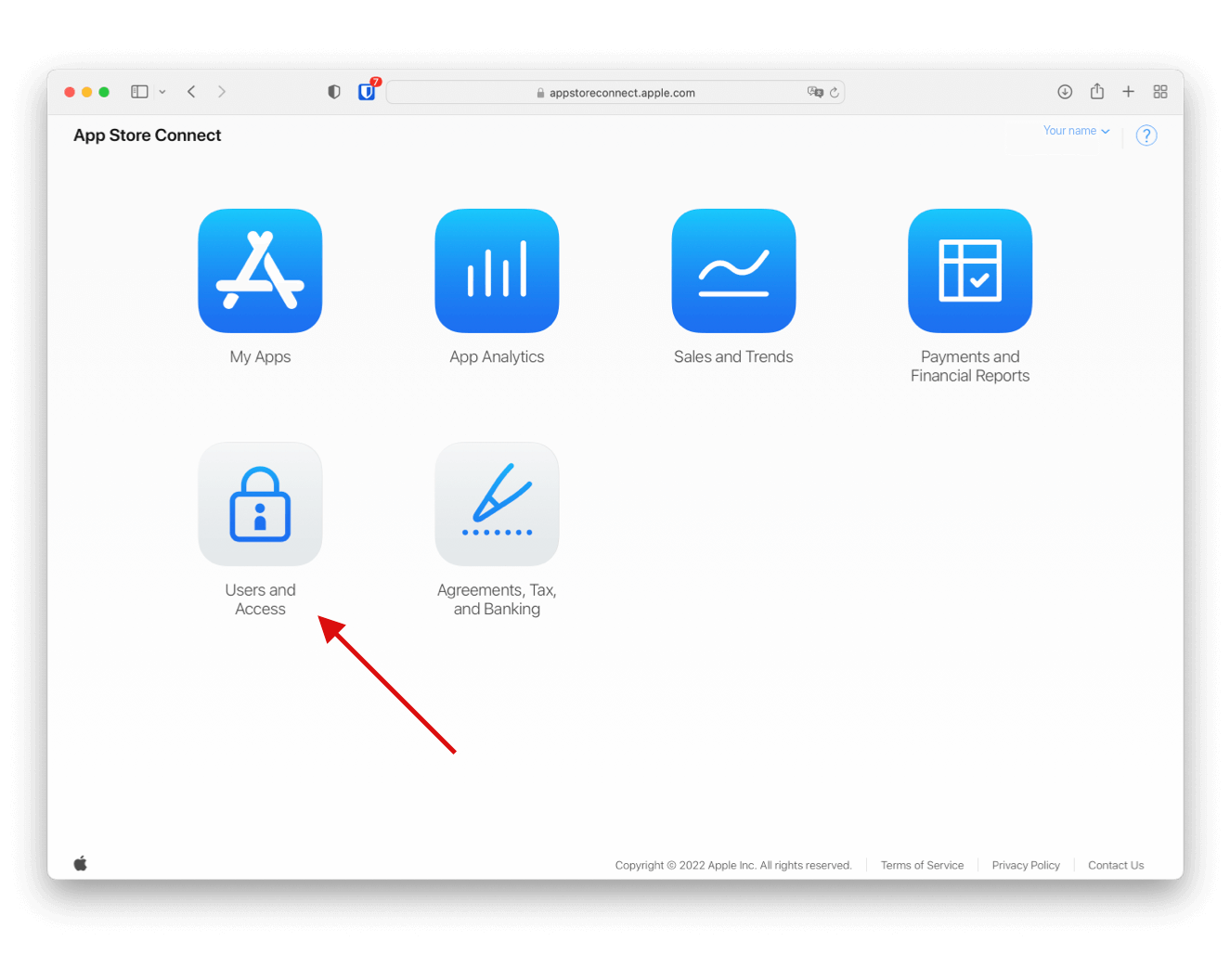
2.1 Open Users and Access
1. Sign in to App Store Connect.
2. In the top navigation, go to Users and Access.
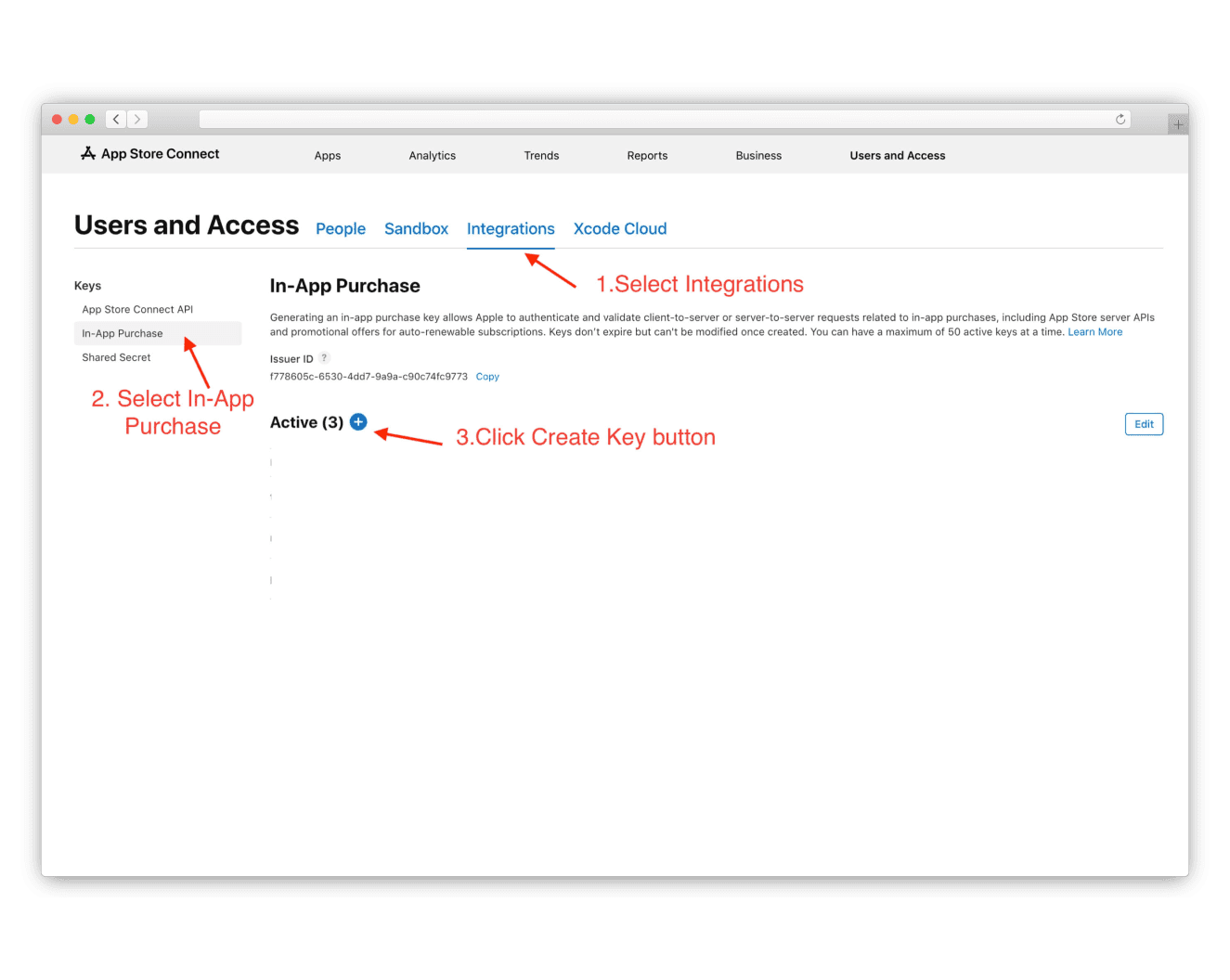
2.2 Create an In-App Purchase API Key
1. In Users and Access, open the Integration tab.
2. In the left menu, select In-App Purchase.
3. Click the Create key button on the right.
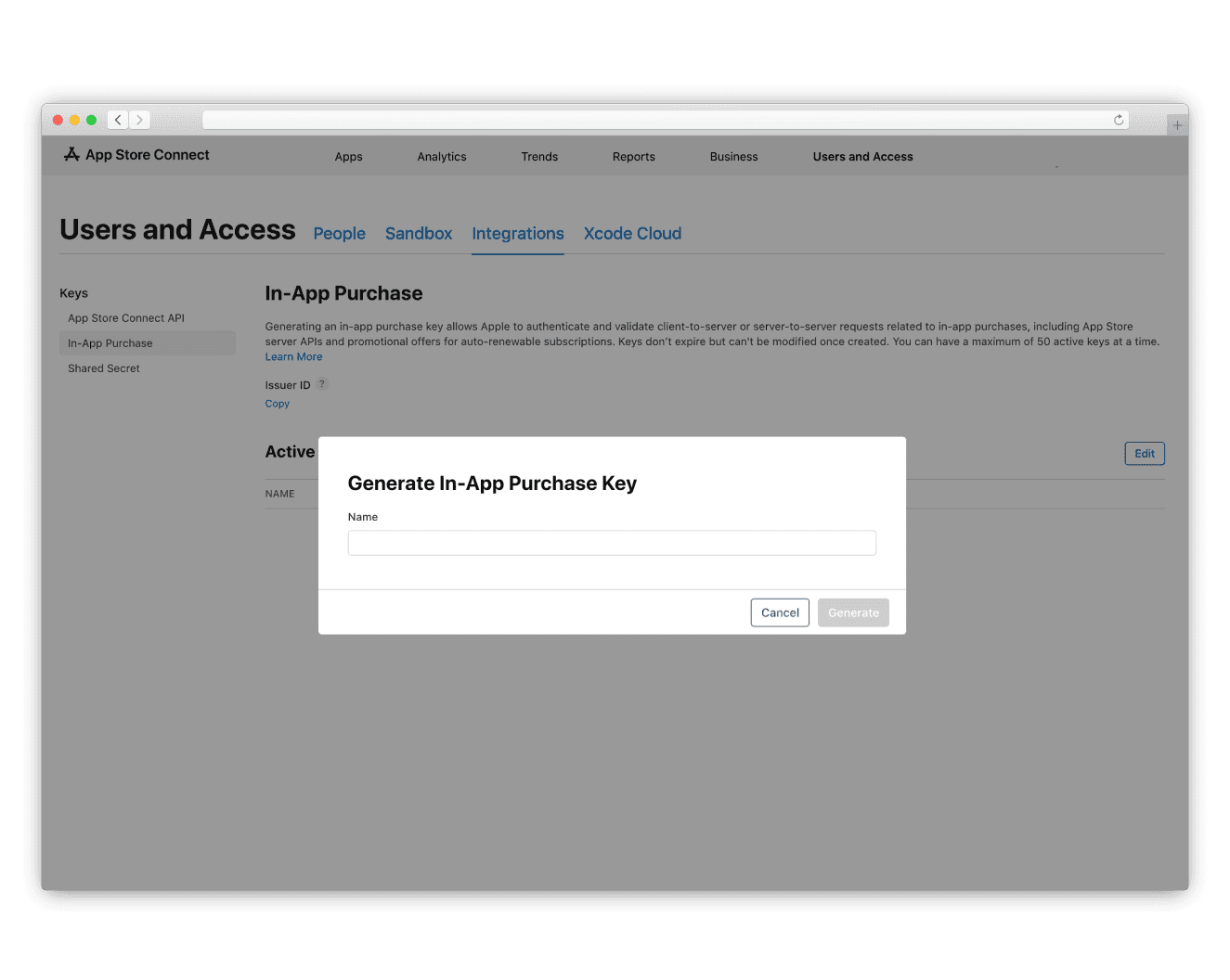
2.3 Generate the API Key
Follow the on-screen instructions to name the key and set permissions, then confirm to generate the API key.
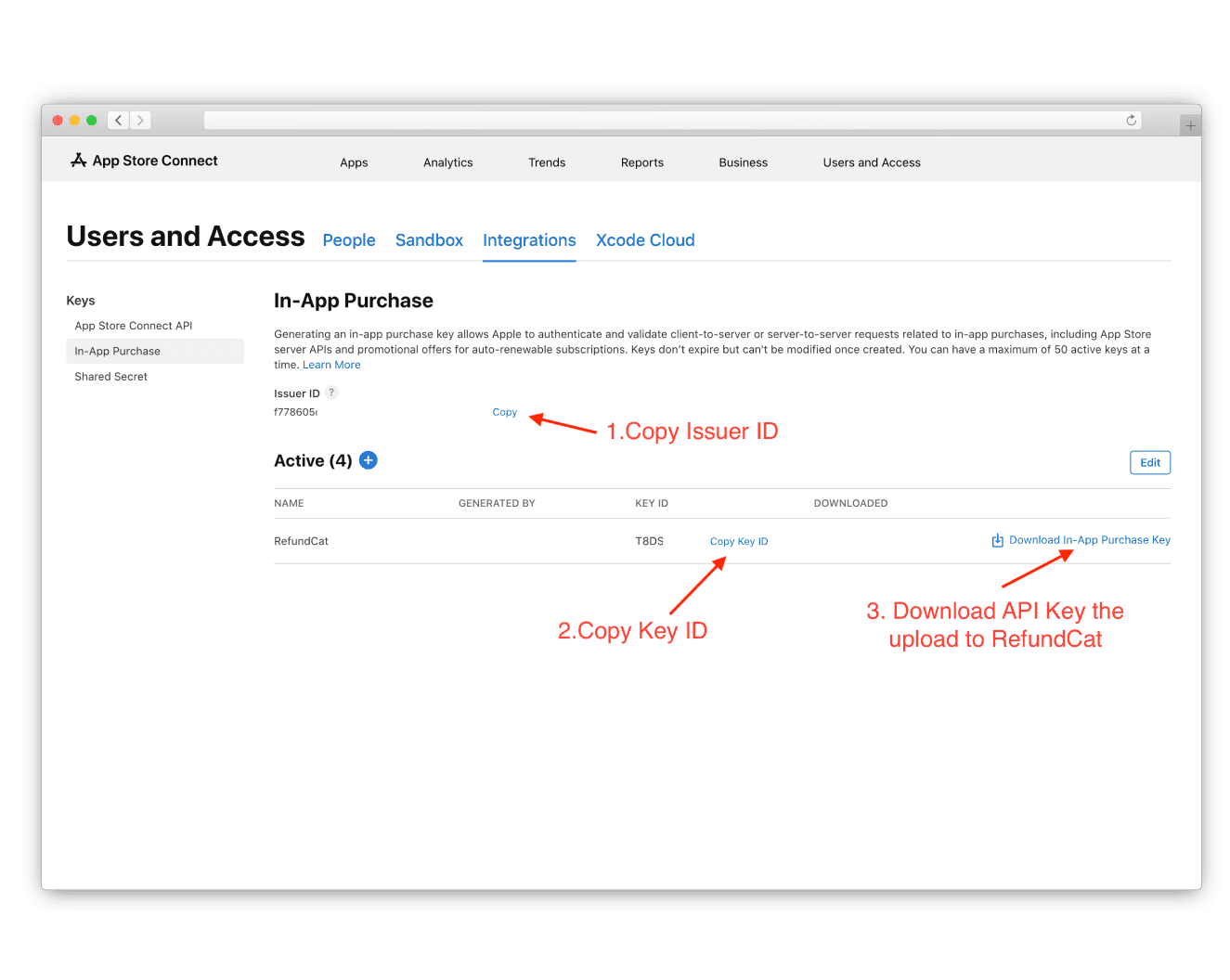
2.4 Collect Issuer ID, Key ID and .p8 File
On the API key details page, collect the following values:
- Issuer ID
- Key ID
- API key file (.p8)
Apple only allows the .p8 file to be downloaded once, so store it securely.
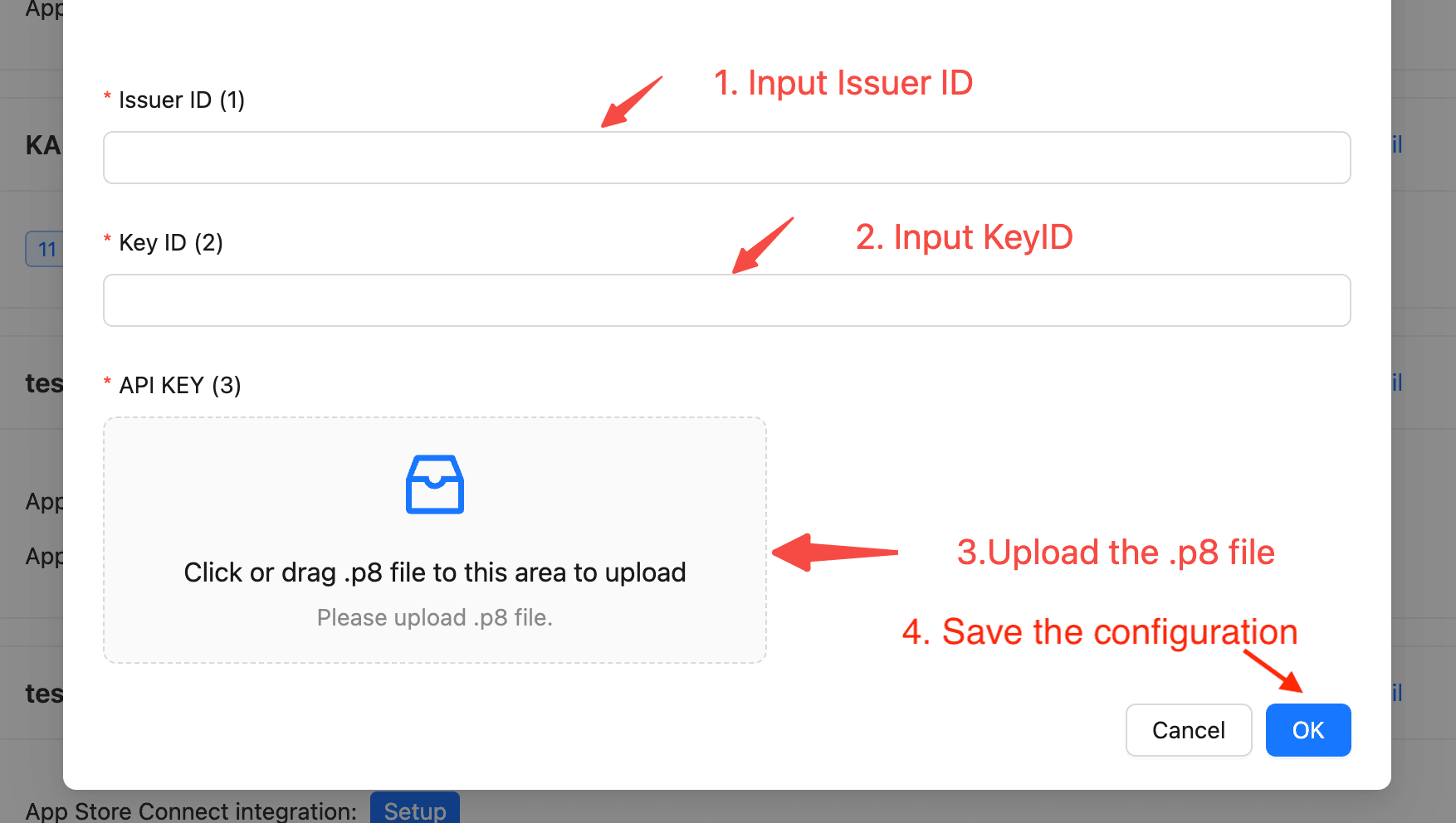
2.5 Connect the API key to RefundCat
In the RefundCat dashboard, open your app's App Store Connect Integration section and:
- Paste the Issuer ID into the Issuer ID field
- Paste the Key ID into the Key ID field
- Upload the .p8 file into the API key field
Save the configuration.
3. App Store Server Notifications Integration
App Store Server Notifications (ASN) let Apple send real-time events such as refunds and consumption requests to RefundCat. Configuring ASN is required for RefundCat to automatically process refund requests.
RefundCat supports two ways of receiving notifications:
- Regular setup (recommended): Apple sends notifications directly to RefundCat.
- Third-party setup: Adapty, Apphud, or RevenueCat forward notifications to RefundCat (with limitations).
3.1 Regular Setup (Recommended)
Regular setup is the most reliable configuration. Apple sends notifications directly to RefundCat, and RefundCat can optionally forward them to your backend or other services.
3.1.1 Select the App
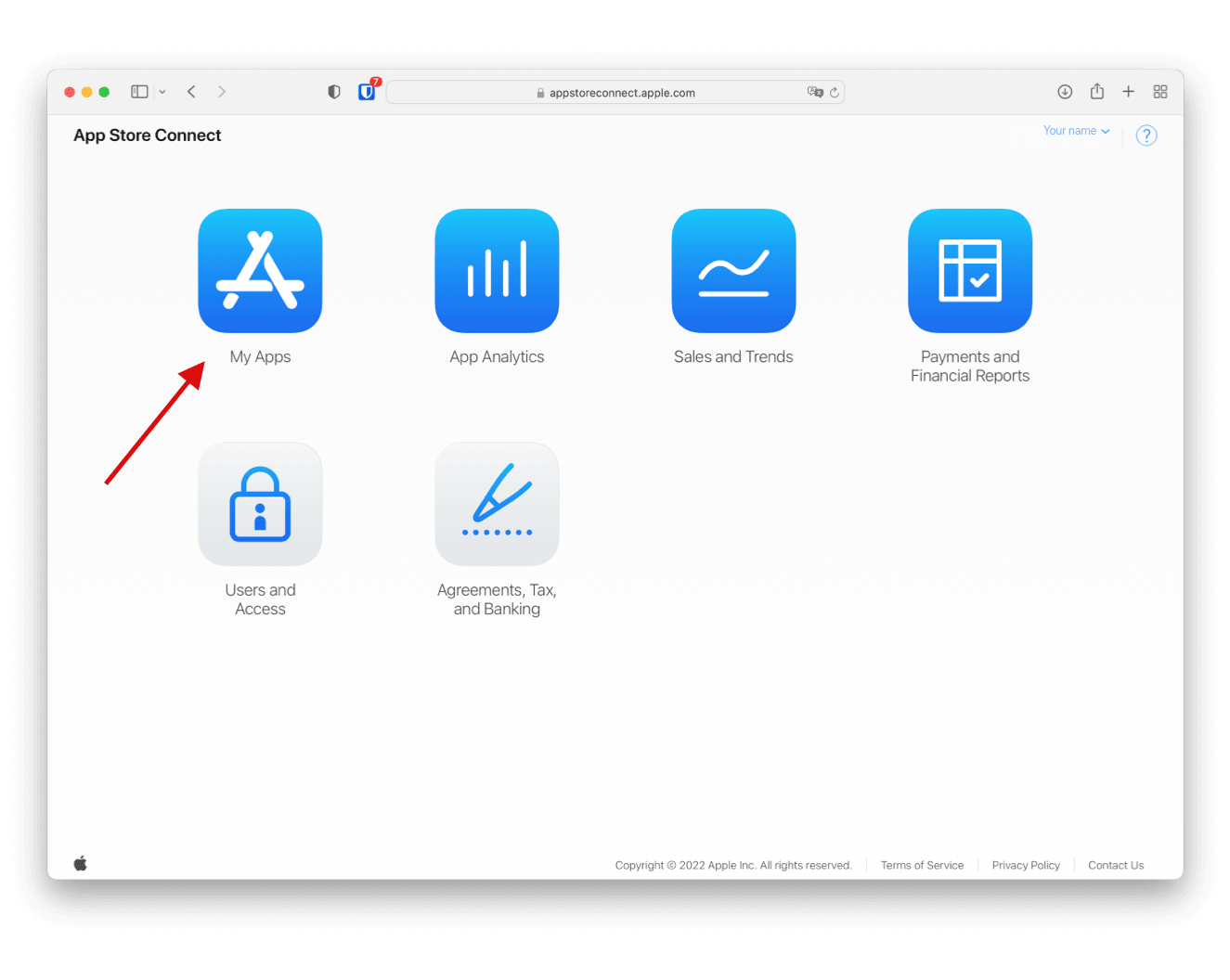
1. Go to App Store Connect.
2. From the home page, open My Apps and select your app.
3.1.2 Open App Store Server Notifications
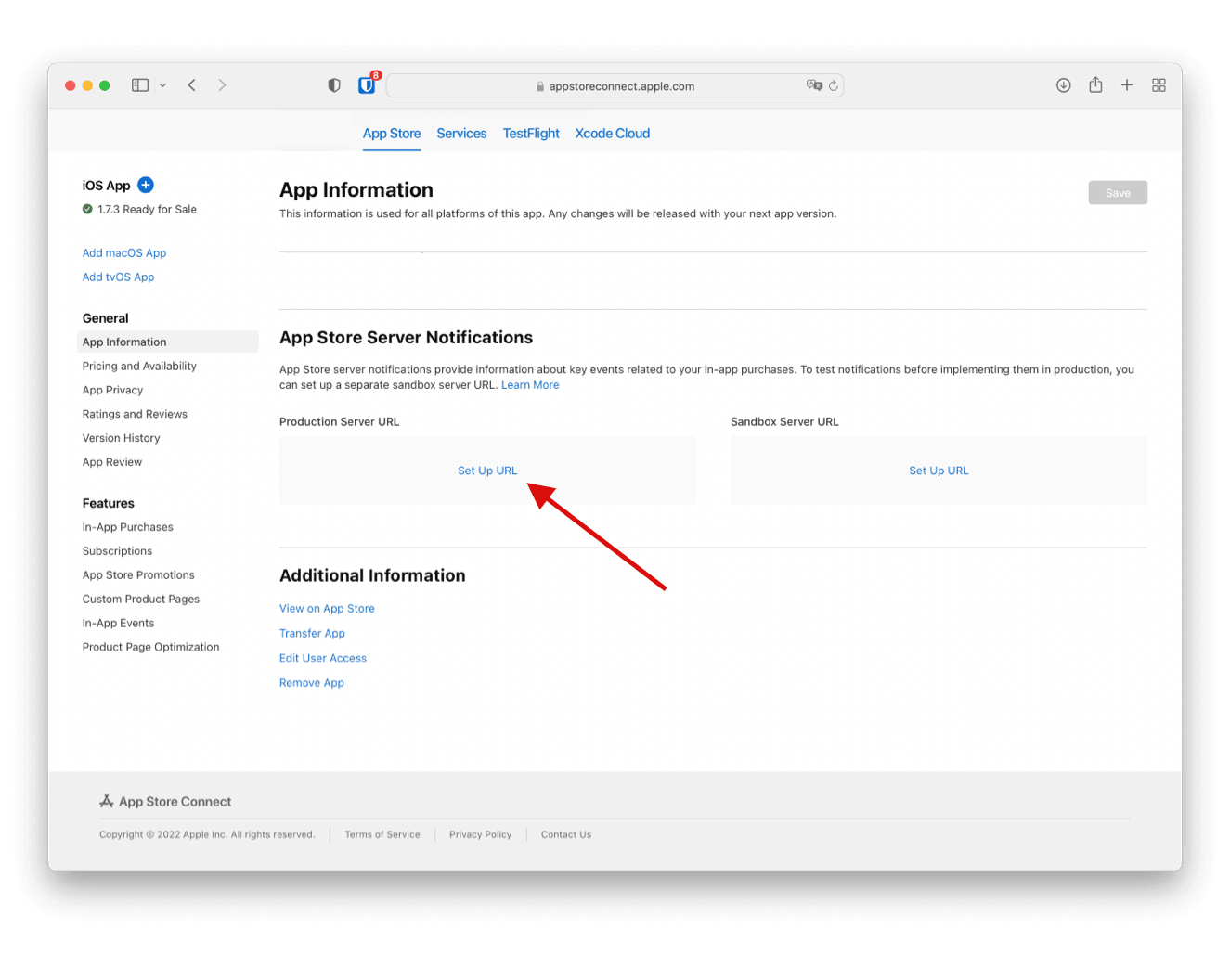
1. Open the App Information section of your app.
2. Scroll down to App Store Server Notifications.
3. Click Set Up Production Server URL (or Edit).
3.1.3 Configure the Production Server URL
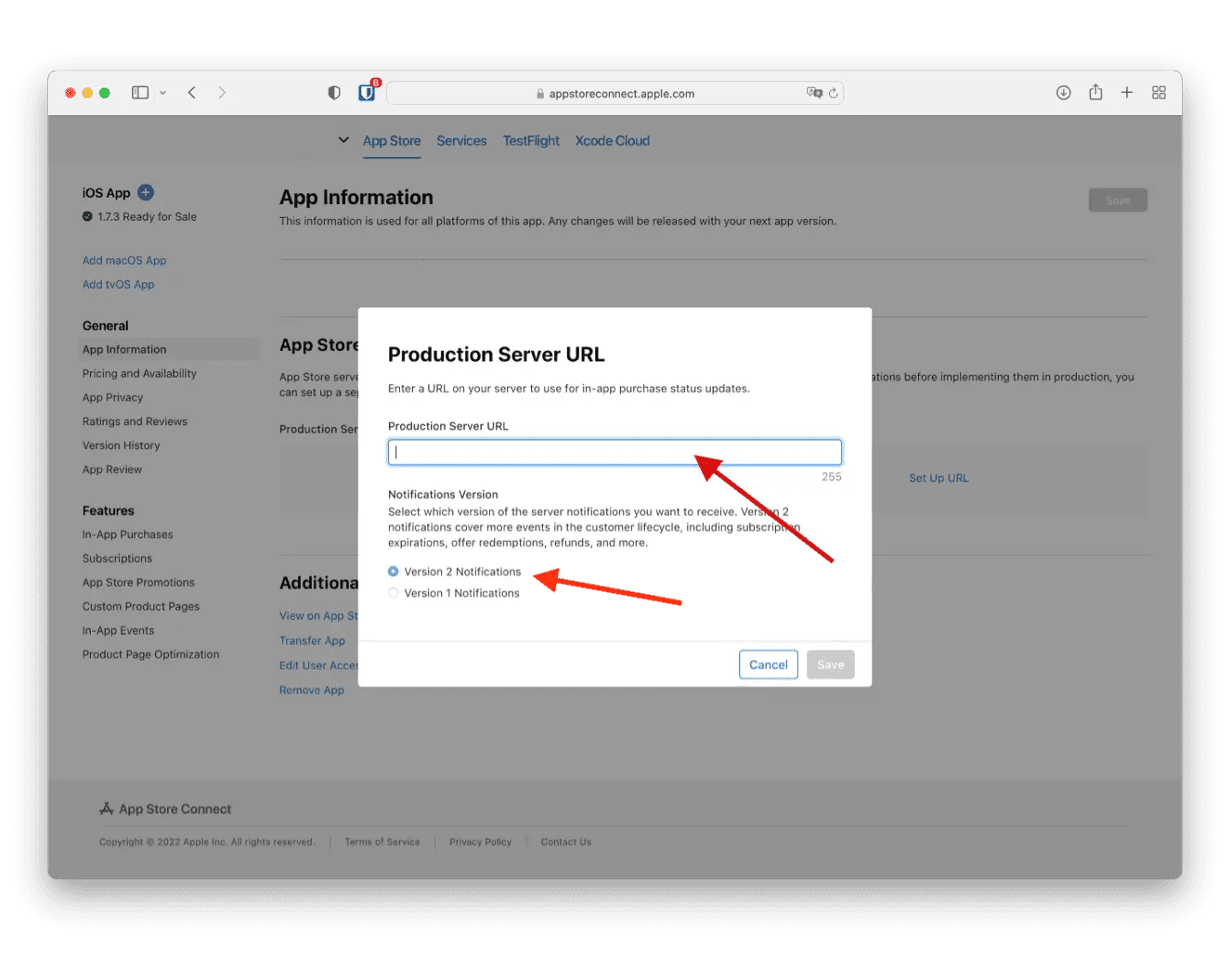
In the Production Server URL field, paste the RefundCat notification URL shown for your app in the RefundCat dashboard. It is typically displayed as a green tag, for example:
https://.../apple/asn/<appId>
If a notification version selector is present, select Version 2 notifications.
If you already have another URL configured:
- Replace it with the RefundCat URL in App Store Connect.
- Copy the original URL and add it later in RefundCat's notification forwarding list so RefundCat can forward events to your existing destination.
3.1.4 Notification Forwarding (Optional)
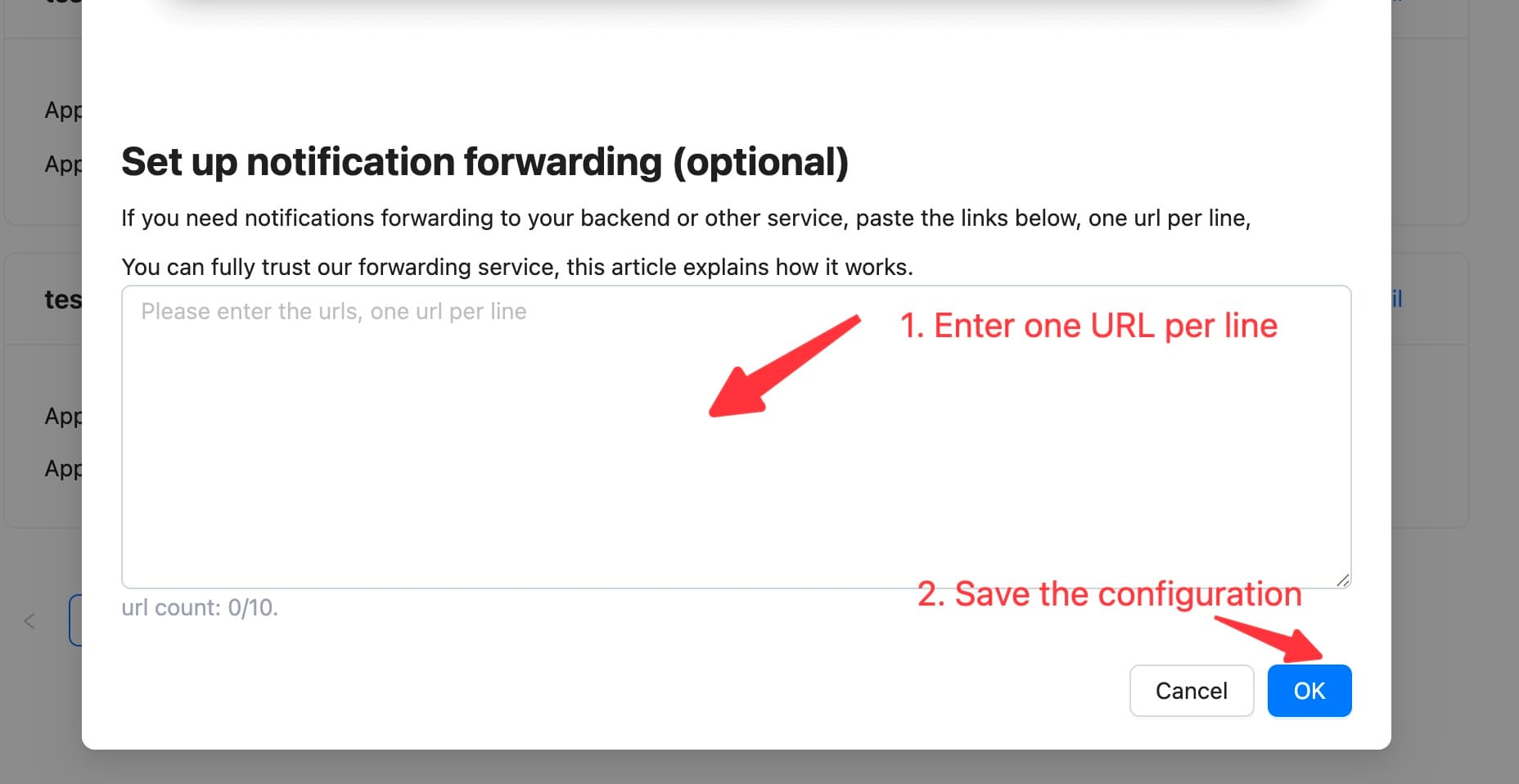
After you configure Regular setup, RefundCat can forward the notifications it receives from Apple to additional endpoints, such as your own backend or other services.
Typical use cases include:
- Keeping your existing backend webhook endpoint
- Forwarding to multiple analytics or subscription services
- Testing new services alongside your current setup
To configure forwarding in RefundCat, on RefundCat dashboard, open the App Store Server Notifications section of your app and find the Set up notification forwarding (optional) area. Enter one URL per line, for example:
https://your-backend.example.com/apple-notifications
https://another-service.example.com/asn
When a notification arrives, RefundCat will process it and then forward it to each URL in the list.
You can read more about how RefundCat's forwarding works and why it is safe in the article How we forward notifications.
3.2 Forwarding from your own server (Alternative)
If you configured your own server as the Production Server URL in App Store Connect instead of RefundCat, you can still send a copy of each notification to RefundCat from your backend. We recommend forwarding the notification as soon as your server receives it.
The example below shows a minimal Node.js/Express handler that forwards every App Store notification to RefundCat without parsing and re-wrapping the request body:
import express from "express";

const app = express();

// Use raw body so we can forward exactly what Apple sent
app.use(
  express.raw({
    type: "*/*",
  })
);

// Replace with the RefundCat notification URL for your app
const REFUNDCAT_URL = "https://.../apple/asn/<appId>";

app.post("/apple/asn", (req, res) => {
  const body = req.body; // Buffer with the original request body

  // Immediately forward the raw body to RefundCat
  fetch(REFUNDCAT_URL, {
    method: "POST",
    headers: {
      "content-type": req.headers["content-type"] || "application/json",
    },
    body,
  }).catch((err) => {
    console.error("Failed to forward to RefundCat", err);
  });

  // Respond to Apple as soon as possible
  res.status(200).send("OK");
});

app.listen(3000, () => {
  console.log("Server listening on port 3000");
});
This sample code was generated by ChatGPT and may contain mistakes. Please review, test, and adapt it carefully before using it in production.
Even with this approach, we still recommend using Regular setup (Apple sending notifications directly to RefundCat) whenever possible, and treating your own server or other services as additional destinations via forwarding.
3.3 Third-Party Provider Setups
If you use a subscription backend provider, you can configure it to forward notifications to RefundCat. However, due to limitations and stability issues, Regular setup through RefundCat should remain your primary configuration.
3.3.1 Adapty Setup
If you use Adapty and already configured its Apple Server Notifications in App Store Connect:
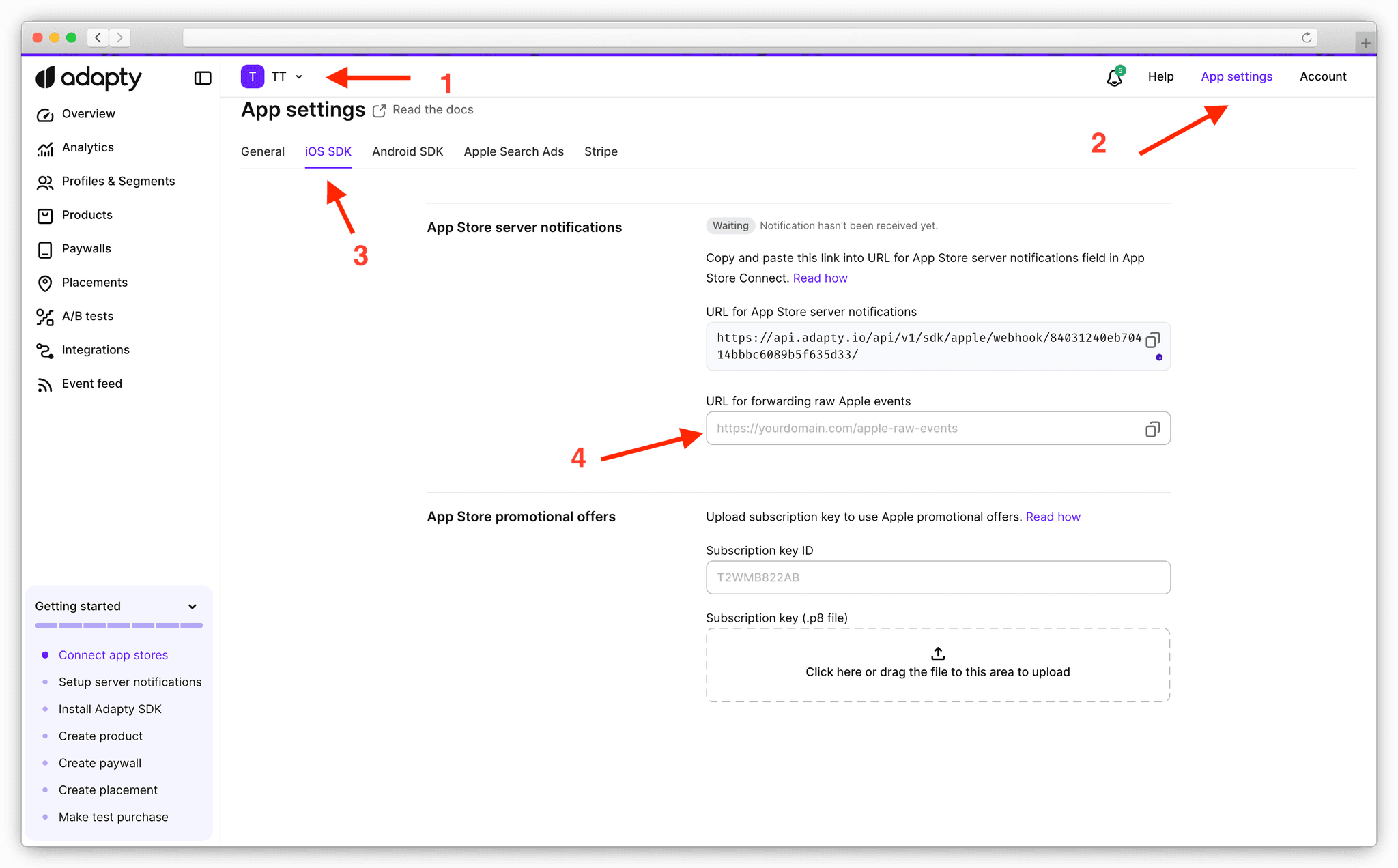
- Open the Adapty console and select your app.
- Click App Settings and open the iOS SDK tab.
- In URL for forwarding raw Apple events, enter your RefundCat notification URL for this app.
3.3.2 Apphud Setup (important limitation)
Apphud does not forward CONSUMPTION_REQUEST notifications, which RefundCat uses to process refund requests. For this reason, you should always configure Regular setup in App Store Connect so that Apple sends notifications directly to RefundCat.
To combine Apphud with RefundCat:
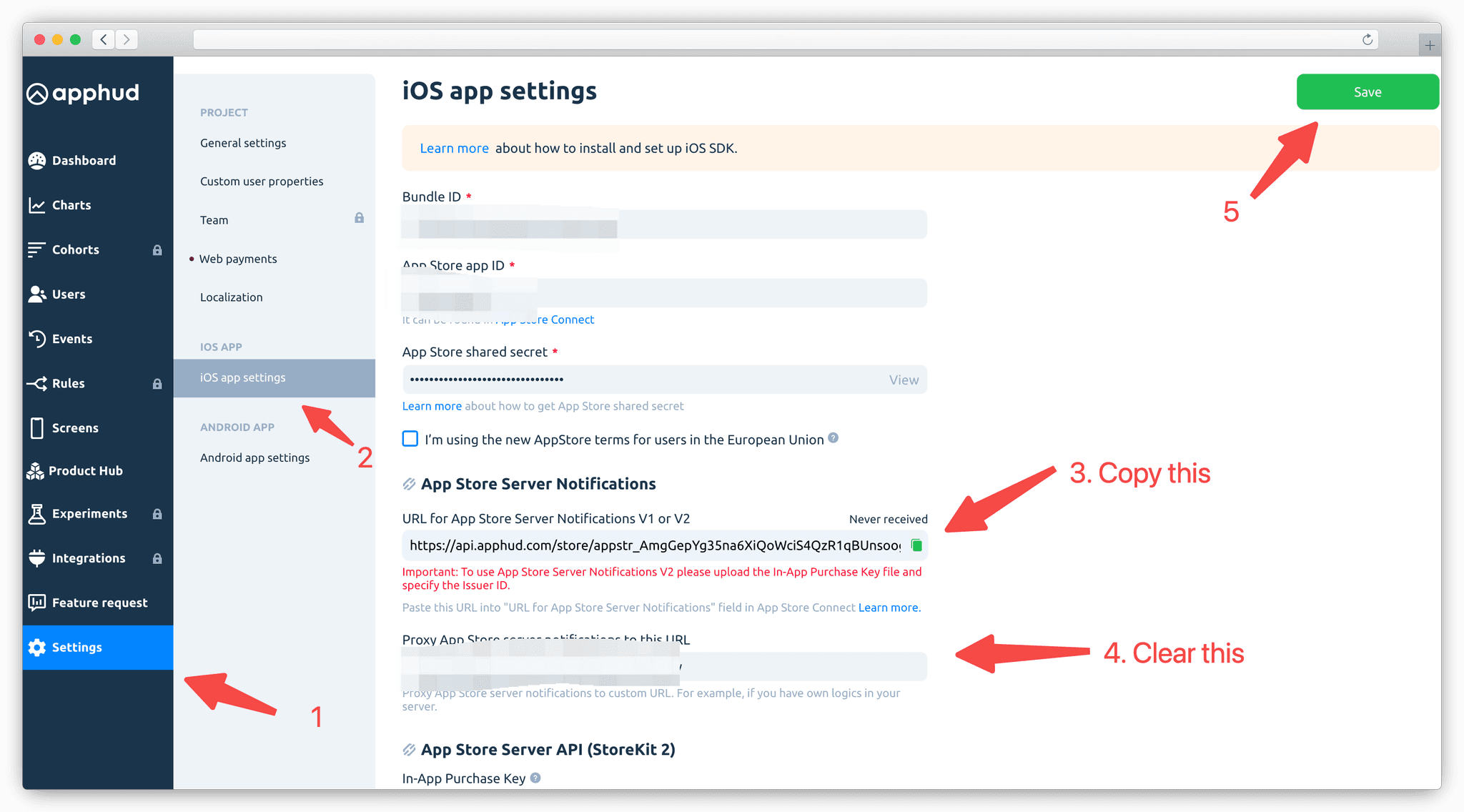
- In the Apphud dashboard, copy the Apphud notification URL.
- In RefundCat, add this URL to the notification forwarding list (one URL per line).
- In App Store Connect, follow the Regular setup steps and set the RefundCat URL as the Production Server URL, with Version 2 notifications.
3.3.3 RevenueCat Setup (stability warning)
RevenueCat's forwarding service appears to be unstable for some customers. In some cases, RefundCat does not receive notifications when relying only on RevenueCat forwarding, while Regular setup works correctly. To avoid missing refund requests, keep Regular setup enabled and treat RevenueCat forwarding as optional.
If you still want to configure forwarding from RevenueCat:
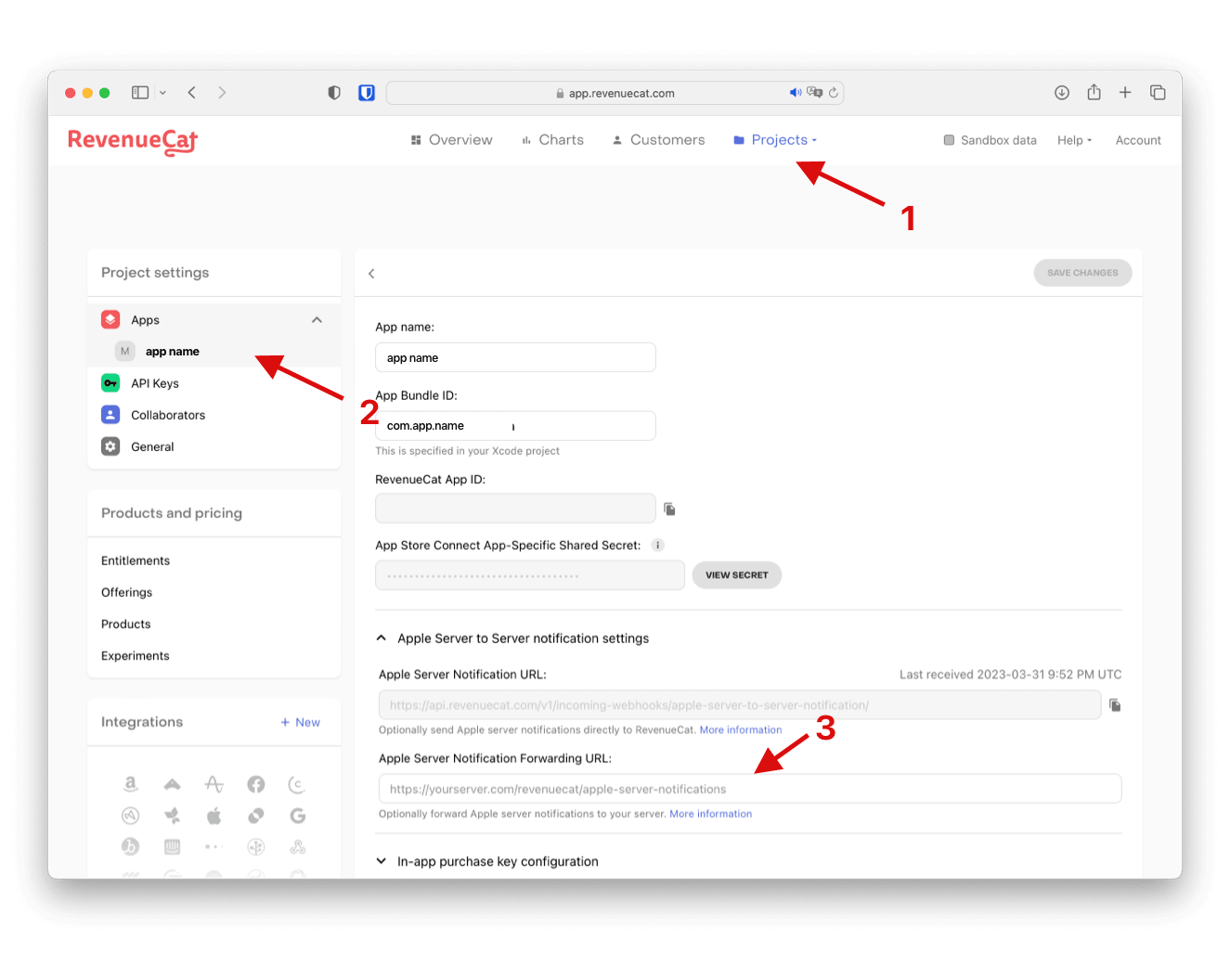
- Open the RevenueCat console, select your project, and then your app.
- In Apple Server Notifications Forwarding URL, enter your RefundCat notification URL.
4. Recommended Setup Summary
For a reliable and complete setup:
- Configure App Store Connect Integration in RefundCat with Issuer ID, Key ID, and your .p8 file.
- Set the Production Server URL in App Store Connect to your RefundCat notification URL and use Version 2 notifications.
- Use notification forwarding in RefundCat to send events to your backend or third-party services as needed.
- Treat third-party forwarding (Adapty, Apphud, RevenueCat) as optional and keep Regular setup active to avoid missing refund requests.